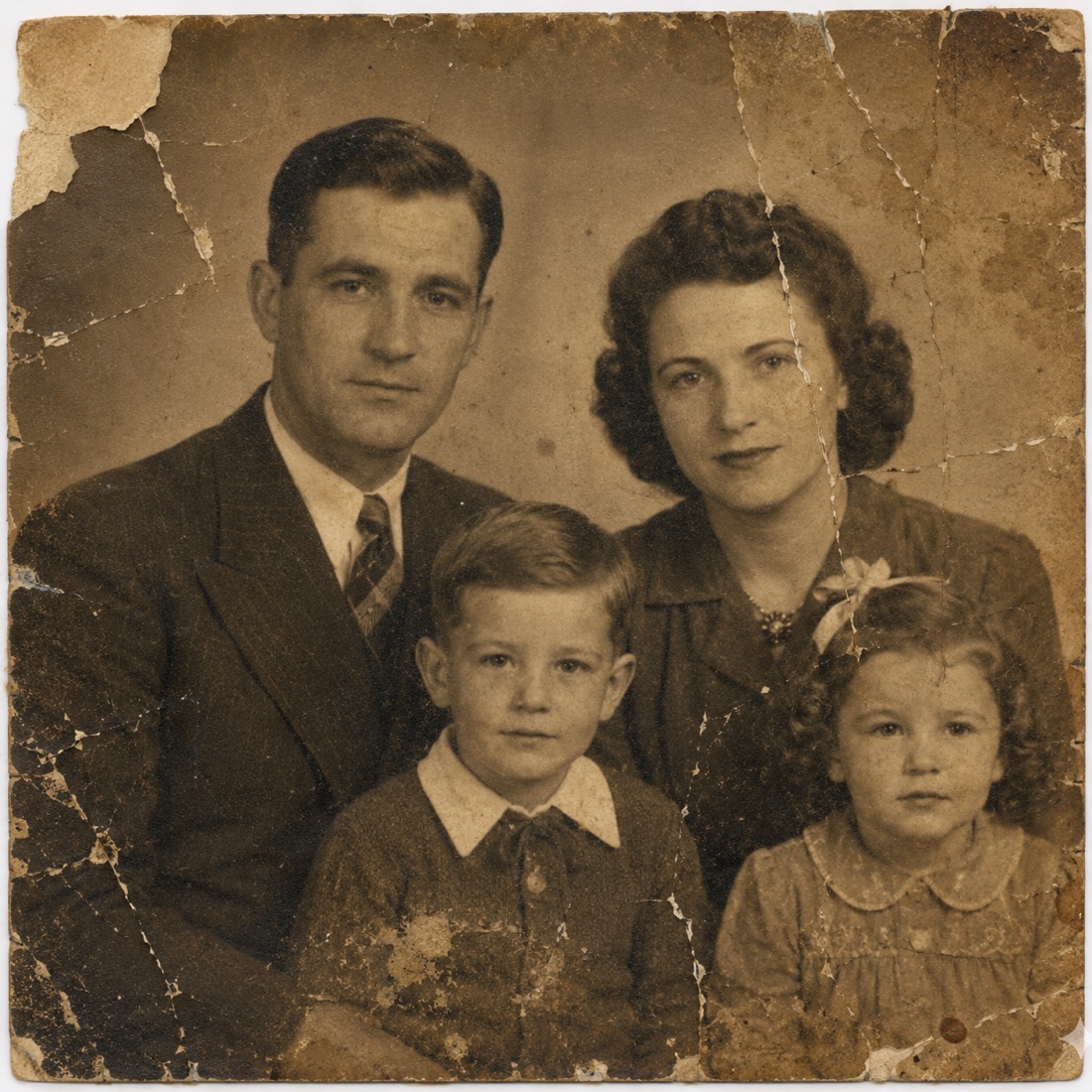
An iPhone makes old-photo restoration accessible because the camera, restoration tool, comparison view, and saved result can all live in one workflow. The convenience is real, but the order of operations matters. If the phone capture contains glare, motion blur, or a steep angle, the restoration model may spend its effort correcting the new defect instead of the original photograph.
Start by identifying what is physically wrong with the print and what is only wrong with the digital copy. Then solve the capture problems before asking AI to interpret scratches, faded color, or soft facial detail. This produces a more controlled result and makes it easier to recognize when the restoration has gone too far.
1. Diagnose the photo before choosing a repair
Place the photograph in even light and look across the surface from several angles. Do not flex or flatten it. Write down the defects you see instead of relying on a vague impression that the photo looks “old.”
Surface scratches and dirt
Scratches usually have sharp edges and cross the image independently of the photographed scene. Dust may appear as small bright or dark spots. A crease can be broader and may change direction as it crosses different tones. These are good candidates for a scratch-removal pass because the surrounding image often gives the model enough context to estimate a repair.
Fading and color shift
Fading lowers contrast and can push the whole print toward yellow, red, or blue. Dark clothing loses separation, skin tones become flat, and the background can merge into the subject. This needs tonal or color restoration, not merely sharpening. Aggressive sharpness can make faded grain more visible without bringing the scene back.
Blur and missing focus
Blur may come from the original camera, movement during exposure, a tiny source print, or your new iPhone capture. Look at the edge of the paper and any handwriting. If those are blurry too, recapture the print. If the paper edge is crisp but the subject is soft, the blur belongs to the historical image.
Physical instability
Flaking surfaces, mold, waterlogged paper, brittle mounts, and photographs stuck to glass need preservation expertise. The National Archives advises handling photos by their edges, supporting them fully, and not separating material adhered to an album page or backing. An app can work from a careful camera copy; it does not require risking the object.
2. Make a clean iPhone copy
Clean capture improves every restoration mode. Put the photo on a stable, matte surface. Use indirect daylight from two sides or diffuse artificial light. Turn off a direct flash, which can create a bright hotspot and reveal the reflection of the phone. If the print is glossy, shift the lights rather than tilting the phone; keeping the camera parallel avoids perspective distortion.
Clean the camera lens
A fingerprint on the lens produces haze that can be mistaken for fading or blur.
Fill the frame without cropping
Move close enough to capture detail, but leave all four print edges visible for later alignment and cropping.
Keep the phone parallel
Match the camera plane to the print. A small tripod, copy stand, or stack-supported phone can help.
Lock focus and check the result
Tap the most important face, take several frames, and inspect eyes, hair, and clothing at full size.
Apple's scanning feature in Notes can automatically detect document boundaries and lets you adjust the corners. It is helpful when alignment is difficult. For restoration, also consider a normal Camera photo at the highest available resolution, because document scans may be stored as PDFs or apply filters intended for text.
Capture more than one version when the print is glossy. A tiny change in light placement can reveal detail hidden by glare. Choose the sharpest, most evenly lit file before opening Memento; do not combine multiple captures unless you are comfortable with manual editing.
3. Repair scratches without erasing real edges
Scratch removal works by using nearby pixels and learned visual patterns to fill a mark. It is usually most dependable in simple areas such as a plain wall, sky, or jacket. It becomes more interpretive when a scratch crosses an eye, a patterned dress, handwriting, or a complicated background.
In Memento, choose the scratch and dirt restoration for the cleanest capture. When the result returns, compare the full line of each repaired scratch. Check whether the model accidentally softened a collar, removed a strand of hair, changed jewelry, or merged two fingers. A repaired surface should not erase an authentic feature merely because it resembles damage.
Severe tears and missing corners deserve modest expectations. AI can make a plausible completion, but it cannot know what the absent area originally contained. For family display, that completion may still be useful. For historical documentation, keep the gap visible or clearly label the repaired version.
4. Restore fading before judging sharpness
Faded photographs often look blurry because their local contrast has disappeared. A cheek blends into the background, dark hair loses texture, and clothing folds become one flat tone. Restoring color and contrast first may reveal that more original detail survives than you expected.
For a faded color print, compare neutral objects in the scene: a white shirt, gray pavement, black shoes, or a known wall color. These give you clues about the color cast. For black-and-white photos, colorization is a creative interpretation rather than reversal of fading. Keep those goals separate so viewers understand what changed.
Natural restoration leaves some texture. If every face becomes perfectly smooth, every shadow is open, and the film grain disappears, the result may feel modern but less like the original photograph. Use the before-and-after comparison to decide whether improved visibility is worth any change in character.
5. Sharpen faces carefully
Face enhancement can make eyes, brows, lips, and hair easier to recognize, which is often the emotional center of an old family photo. It is also where AI estimation is most noticeable. The model may choose a plausible eyelid or tooth shape rather than recover an exact hidden detail.
Judge identity before beauty. Compare head shape, eye spacing, nose width, mouth position, hairline, age lines, and expression. If a relative looks younger, smoother, or simply like a different person, the sharpening is too interpretive for that purpose. A slightly soft but recognizable face is better than a crisp stranger.
Text and architecture need separate attention. Sharpening a face does not guarantee accurate lettering on a sign or correct geometry in a window. Do not use generated text as a genealogy source. Return to the untouched capture when reading dates, captions, military insignia, or house numbers.
6. Compare, export, and preserve the result
Review at three scales. First, look at the whole photograph to judge balance and mood. Second, zoom into faces and hands. Third, inspect boundaries where repairs occurred. Move repeatedly between original and restored views rather than relying on memory.

Save a Standard result for ordinary sharing or use Memento Pro's HD export when you need more generated detail for printing. Export quality cannot turn a tiny, out-of-focus capture into true archival resolution, so return to the capture step if the source file is the limiting factor.
Use filenames that preserve provenance: family name, event, estimated year, source owner, and edit type. A folder containing original, scratch-repair, and restored-HD versions is easier for future relatives to understand than several files named “final.” Add a note when color was estimated or missing content was reconstructed.
Finally, back up the files and keep the print. The National Archives recommends retaining physical originals after digitization because digital files can be lost. Store the photograph in suitable archival material and keep digital copies in more than one location.
Repair an old photo from your iPhone
Choose a photo, match the restoration to the damage, compare the result, and save a Standard copy for free.
Try Memento