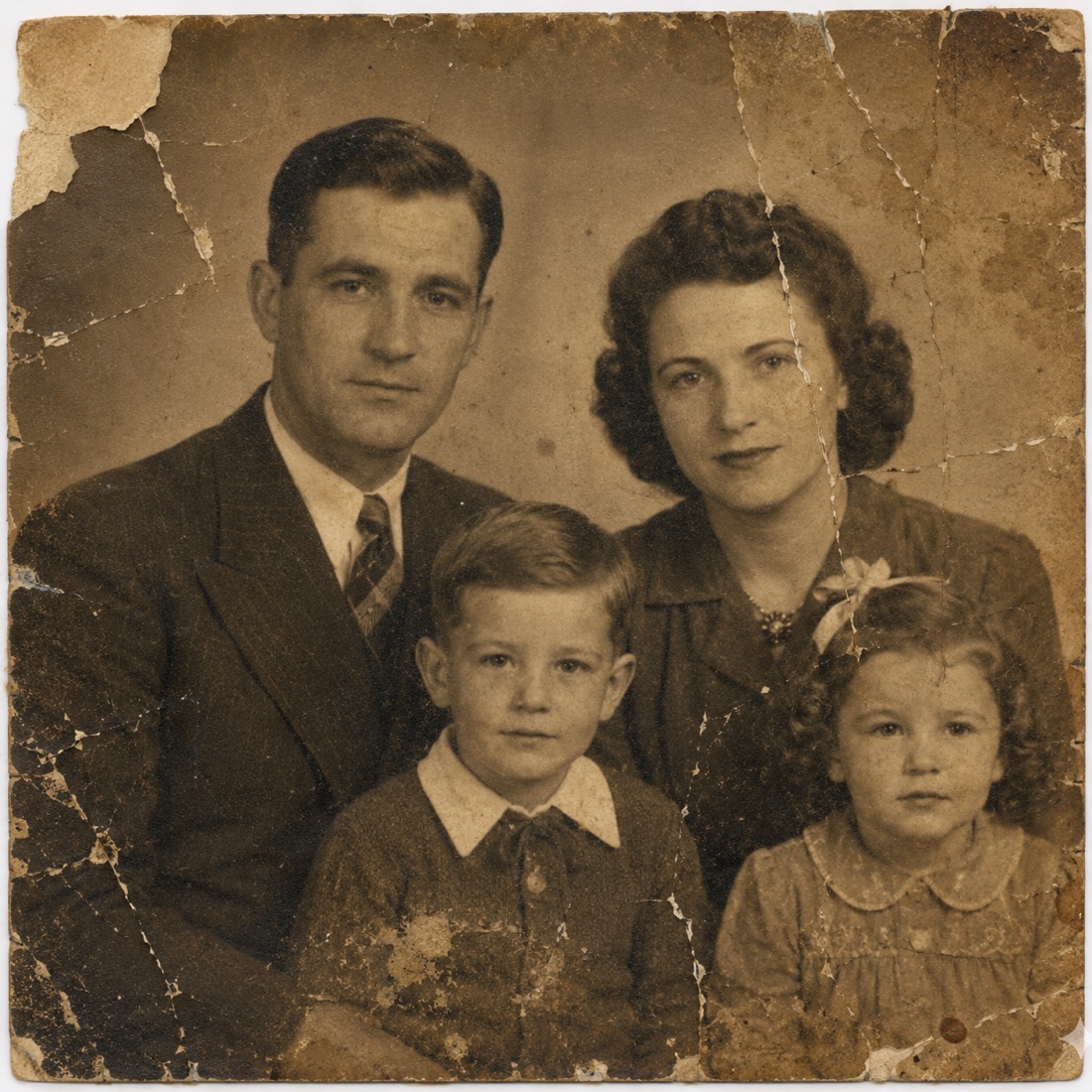
Old photos rarely fail in only one way. A print may be faded and scratched, a face may be slightly out of focus, and a phone capture may add glare or perspective distortion on top of the original damage. Treating all of that as one generic “quality” problem makes it harder to judge whether a restoration is actually better.
The safest approach is sequential: protect the physical object, create a clean digital master, decide what you want to improve, run one restoration, and compare it closely with the original. AI can make this process much faster, but it still estimates missing detail. You remain the final editor because you know which faces, clothes, locations, and expressions must stay recognizable.
1. Inspect the physical photo before scanning it
Begin with the print, not the app. Look for loose surface dirt, brittle corners, flaking emulsion, tears, moisture damage, adhesive, or a photograph stuck to glass or an album page. A valuable image is not worth damaging for a cleaner scan.
The U.S. National Archives recommends handling photographs by their edges, supporting them with two hands, and avoiding attempts to flatten natural curl by force. It also advises against separating a photograph that is adhered to a mount or album page. If the image is brittle, flaking, moldy, wet, or stuck to glass, stop and ask a photograph conservator before trying to clean or remove it.
For a stable print with only loose dust, use a clean, soft brush and a gentle motion. Do not use household cleaner, water, alcohol, tape, or an eraser. These can alter the image layer even when the paper seems sturdy.
2. Create the strongest digital master you can
A restoration cannot begin with detail that the camera or scanner failed to capture. Your digital master should be evenly lit, sharp, straight, and complete. It should include the full edges of the print so you can choose the crop later.
Use a flatbed scanner when practical
A flatbed scanner is usually the simplest option for a loose, flat photograph. Clean the scanner glass, place the print without forcing it flat, turn off automatic “beauty” effects, and scan in color even when the image is black and white. A color scan can preserve subtle paper tones, stains, and fading that help you understand the original.
Choose a resolution that captures the smallest meaningful detail. For ordinary family prints, 600 pixels per inch is a useful working target when storage permits; very small prints may benefit from more. Save a lossless TIFF or PNG master if available, then make JPEG copies for convenient sharing. More resolution does not invent detail, but it gives the restoration tool more source information to work with.
Use an iPhone when a scanner is not available
Place the print on a flat, neutral surface near a large window or between two evenly placed lights. Avoid direct sunlight and ceiling lights that create glare. Hold the iPhone parallel to the photo, keep every edge visible, tap the image to focus, and use a timer or stable support if your hands move.
Apple's document-scanning tools can detect edges and correct perspective. They are convenient for quick capture, although a normal high-resolution camera photo can be easier to preserve as an image file. Inspect the result at full size before moving on: the eyes and fine clothing detail should look sharp, and bright glare should not hide part of the picture.
3. Choose one restoration goal at a time
Before opening a tool, name the main problem. Is the photo hard to see because the face is blurry? Are scratches crossing important features? Has the color shifted? Is a black-and-white image being colorized for a gift? A clear goal makes comparison more honest.
- Enhance when the image is soft, noisy, or low resolution.
- Remove scratches and dirt when surface marks distract from otherwise visible detail.
- Restore color when a color print has faded or when you want an interpreted color version of a black-and-white original.
Do not assume that the most dramatic result is the most faithful. Heavy face enhancement can smooth away age, change eye shape, or make a historical portrait look like a modern studio photograph. Strong colorization can also imply certainty where none exists. For family history, recognizable often matters more than flawless.
4. Restore a copy in Memento
Memento is designed to keep this workflow short. It processes the photo you select, generates a separate result, and leaves the original image unchanged.
Choose the digital copy
Open Memento and select the scan or iPhone capture with the best focus, lighting, and crop.
Select the matching restoration
Use enhancement for blur, color restoration for faded or black-and-white images, or scratch removal for visible marks and dirt.
Wait for the generated result
The selected image is processed by an AI restoration service. Avoid starting from a screenshot or compressed messaging-app copy when the original file is available.
Compare before saving
Reveal the original and inspect the same areas in both versions. Save only after the important details still look like the people and place you recognize.

5. Review the areas AI is most likely to reinterpret
Zoom in before you decide the restoration is finished. Start with the features humans notice most: eyes, teeth, ears, fingers, jewelry, hairlines, uniforms, text, and repeated patterns. AI may create plausible detail that is visually convincing but not present in the source.
Compare the silhouette of each face and body, not just sharpness. Check whether a smile became wider, a gaze shifted, or a hand gained an extra edge. Look at signs, house numbers, medals, and handwritten notes separately; these are meaningful historical details, and image models are not reliable text transcription tools.
Color deserves its own review. Skin tone should remain plausible across faces, color should not bleed across clothing boundaries, and shadows should still match the light in the original. If you know the actual color of a uniform, room, or car, compare the AI result with that family knowledge. Otherwise label the image as colorized rather than presenting it as proof.
6. Save the restoration without losing the source
Never overwrite your only digital master. Keep at least three distinct files: the untouched scan or camera capture, the restored working result, and a sharing or print copy. Use descriptive filenames such as garcia-wedding-1951-original.tif and garcia-wedding-1951-restored-color.jpg.
Memento lets you save a Standard restoration for free. Memento Pro adds HD export when you want more generated detail for printing and private on-device History for reopening previous restorations. History is a convenience, not your only backup: deleting the app or clearing its local data can remove those records.
Store important files in more than one place. A practical family archive might include a computer folder, an external drive, and a trusted cloud backup. Keep names, dates, locations, and the identity of the person who supplied the photo in a text file or photo metadata. Those facts often become more valuable than image resolution over time.
Finally, keep the physical photograph. The National Archives notes that digital files have preservation risks of their own and can be lost. A careful digital restoration gives the family another way to view and share the picture; it does not replace the original object.
Restore a copy, keep the original
Use Memento to repair scratches, sharpen faces, restore color, and compare the result before saving.
Download Memento free